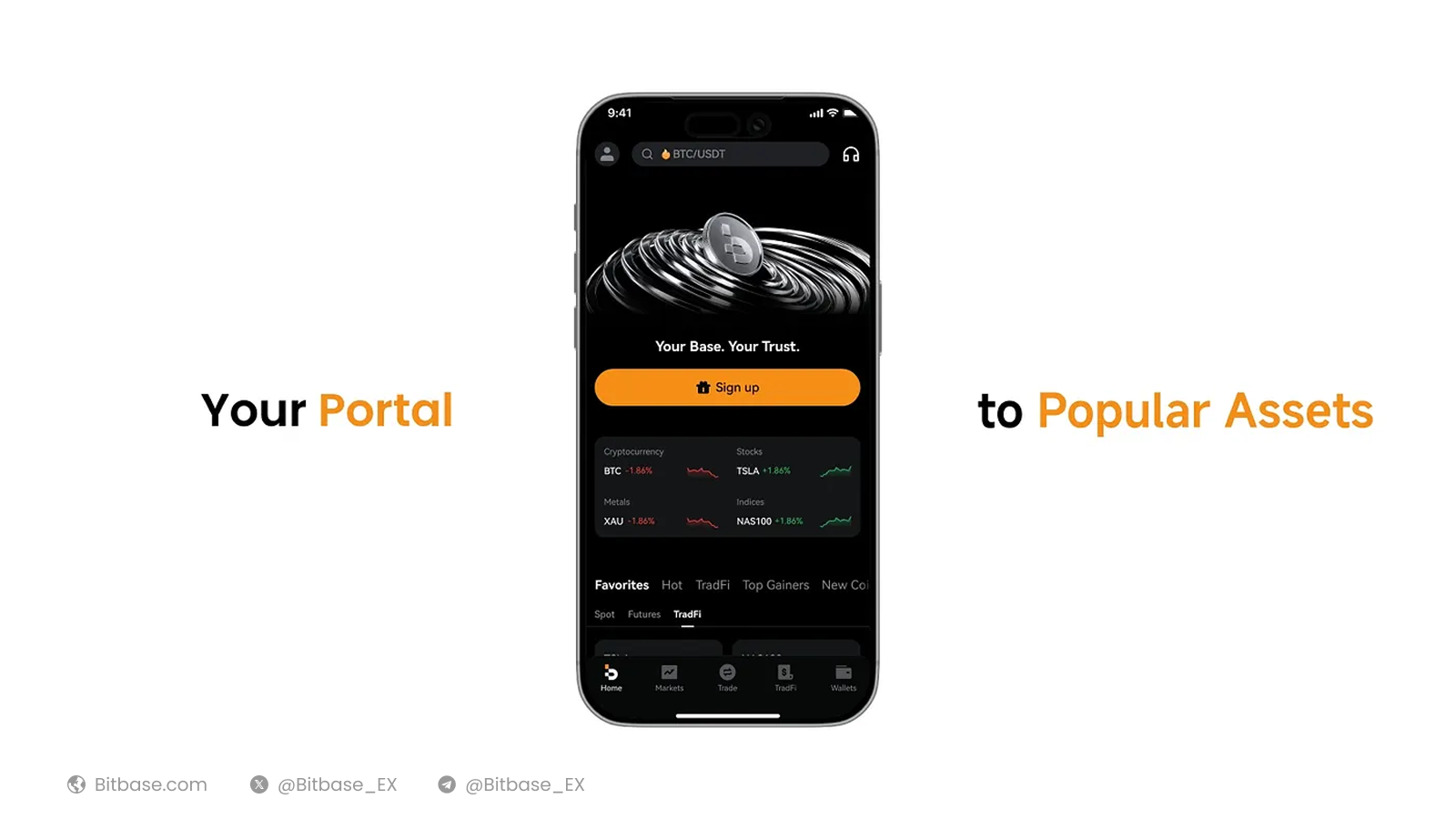
A step-by-step guide to installing the Bitbase app, funding your account, and withdrawing crypto on mobile. This guide uses USDT on the TRC20 (TRON) network as the example.
Before you start
The Bitbase app works on iOS and Android. Complete identity verification in the app to raise your withdrawal limits. Have the sending wallet (or platform) ready, and always make sure the network matches on both sides.
Part 1 — Download and log in
Step 1 · Download the Bitbase app
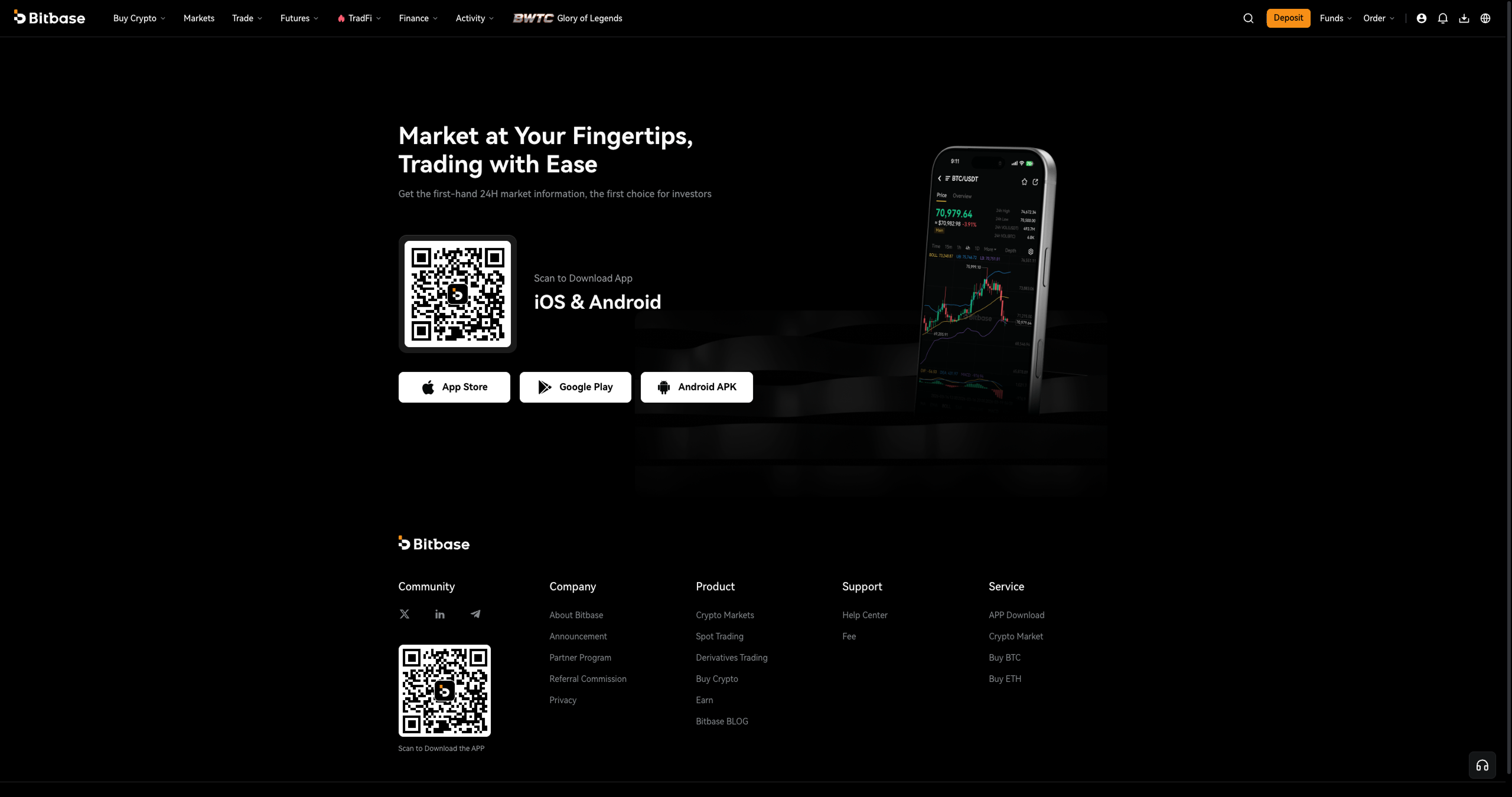
On your phone, get the Bitbase app from the App Store (iOS) or Google Play (Android). You can also tap the download icon on bitbase.com to get the app or APK. Install it, open the app, and log in (or create an account).
Part 2 — Deposit crypto
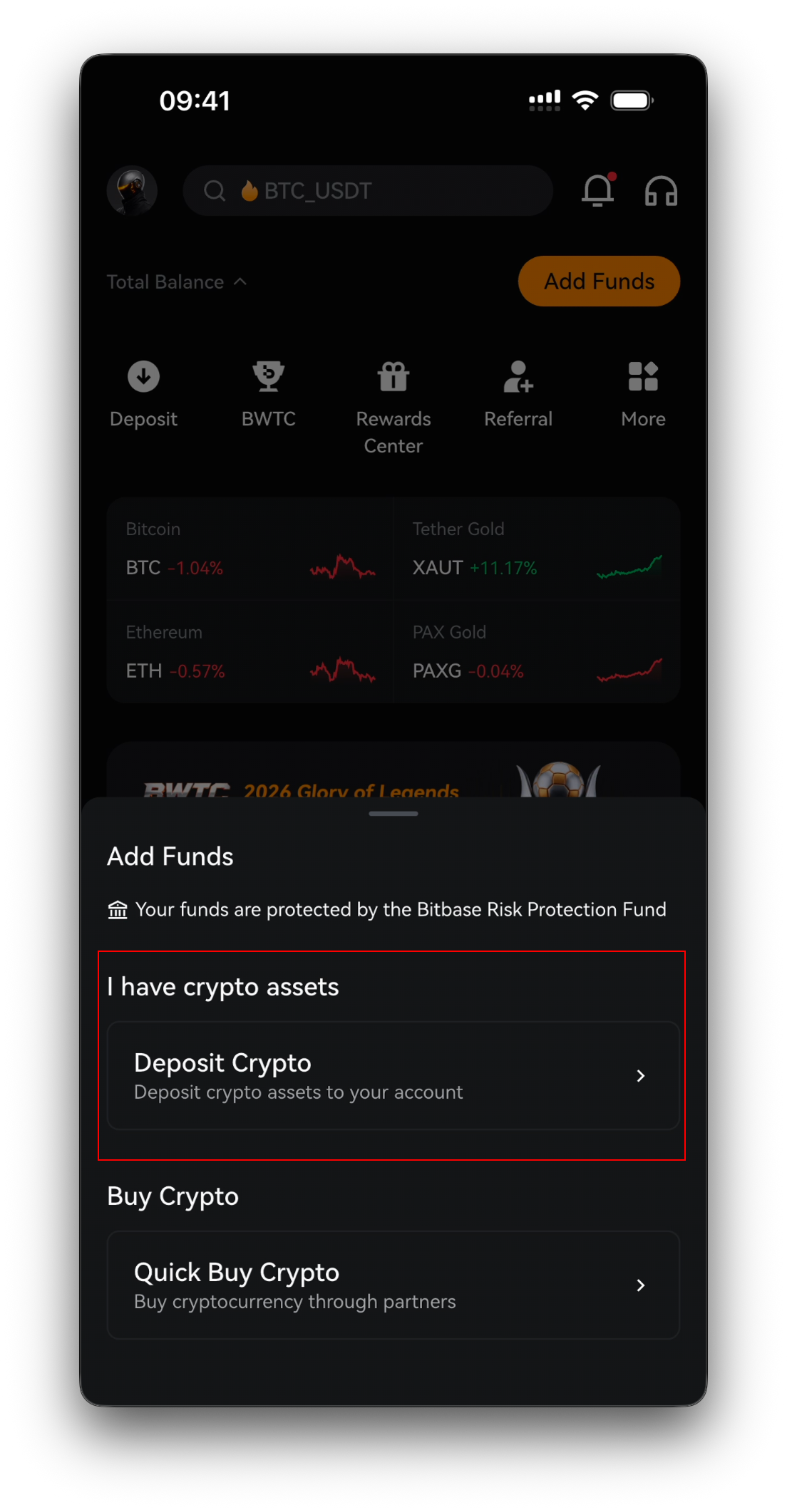
Step 2 · Open the app and tap Deposit
On the home screen you'll see your Total Balance and an Add Funds button, with a bottom bar (Deposit, BWTC, Rewards Center, Referral, More). Tap Deposit (or Add Funds).
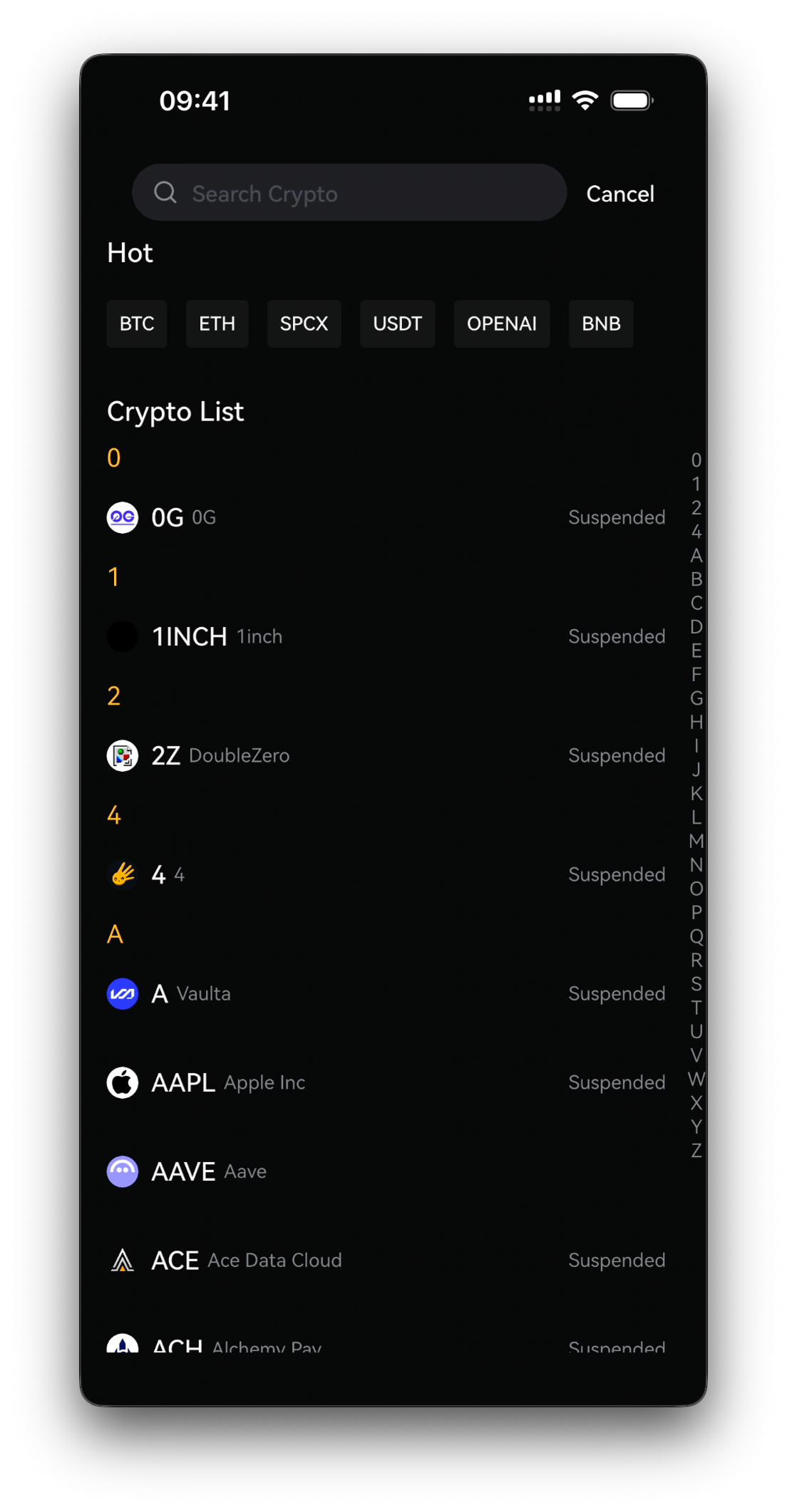
Step 3 · Select the coin to deposit
Choose the cryptocurrency you want to deposit — for example USDT. Use the search box or scroll the coin list.
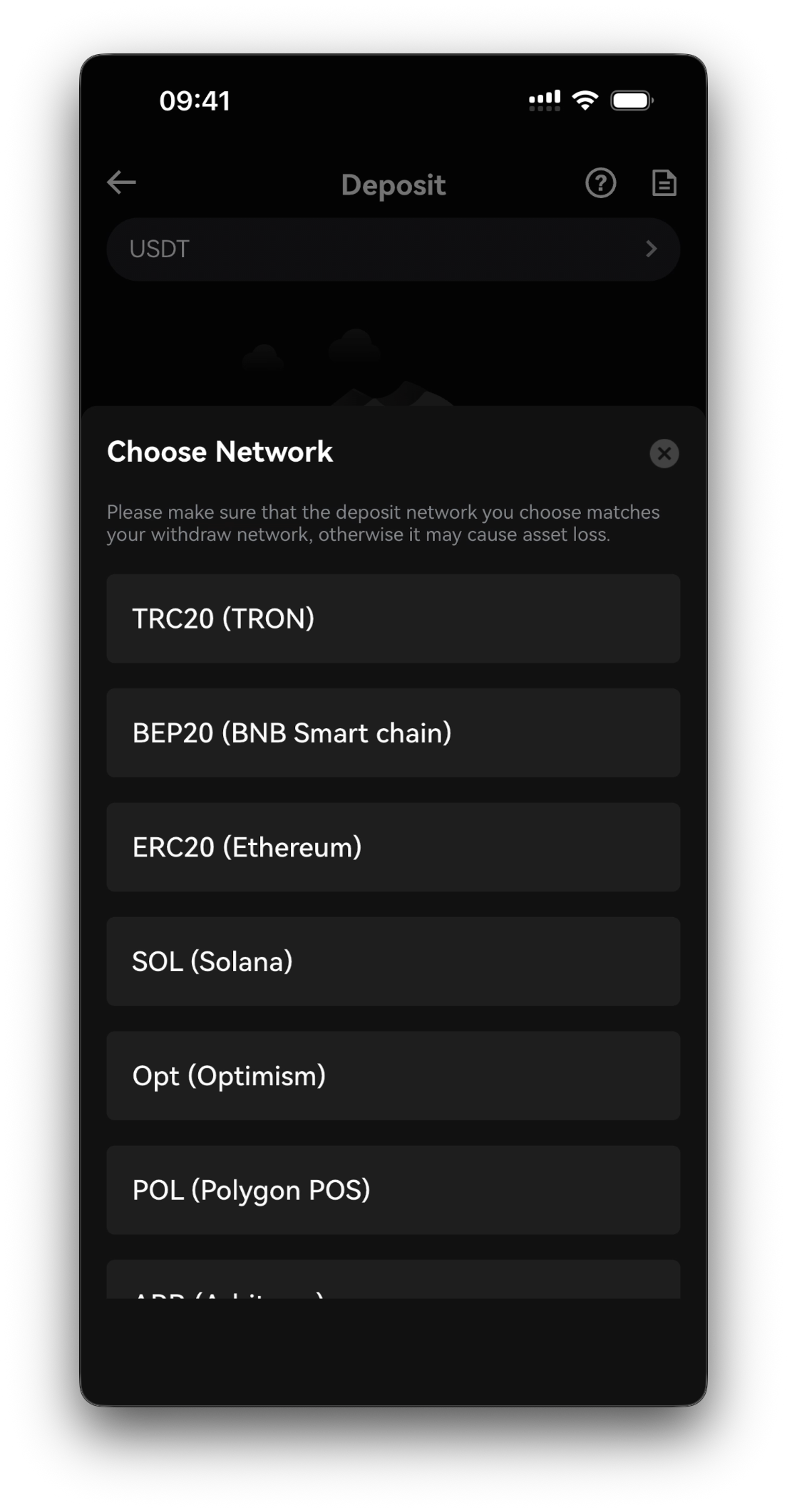
Step 4 · Select the network (chain)
Choose the network — TRC20 (TRON), BEP20 (BNB Smart Chain), ERC20 (Ethereum), SOL (Solana), or Opt (Optimism). This is critical: it must match the network used by the wallet or platform sending the funds, or your assets may be lost.
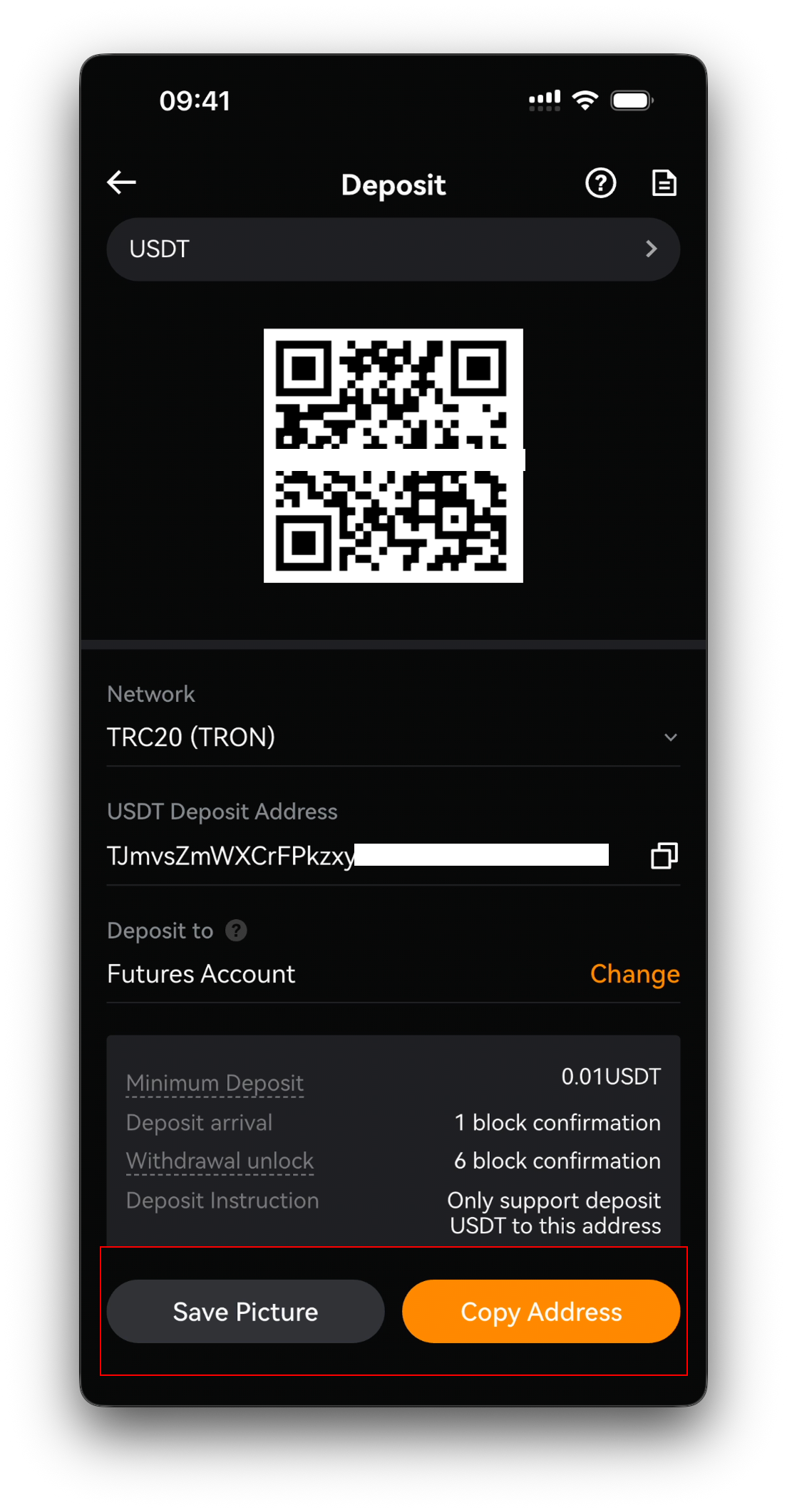
Step 5 · Copy your deposit address
Confirm the receiving account (Spot or Futures), then copy the deposit address or show the QR code to the sender.
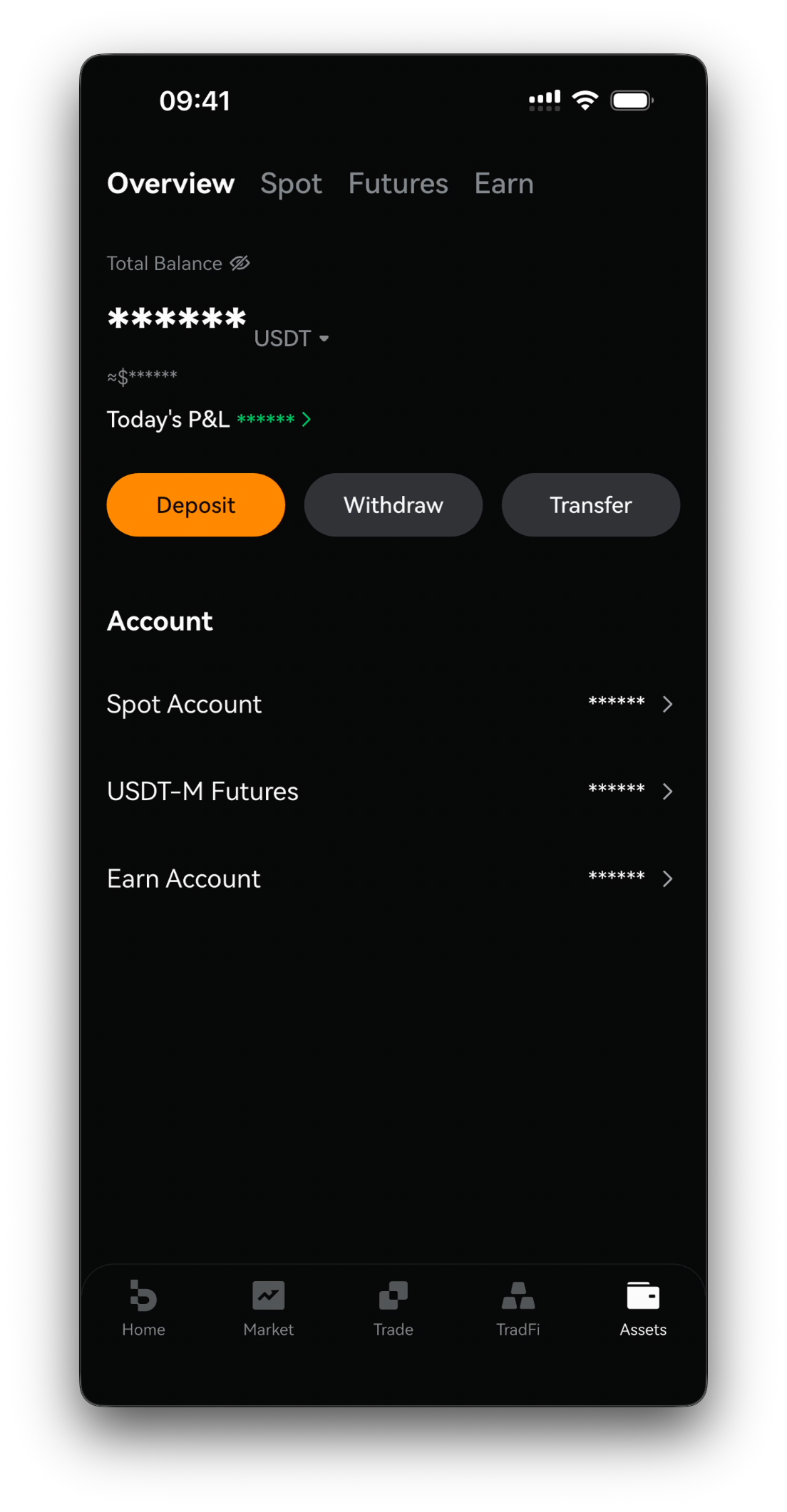
Step 6 · Send from your external wallet and check your balance
Send from your external wallet on the same network. After the blockchain confirms, your funds appear in your Total Balance and assets.
Part 3 — Withdraw crypto
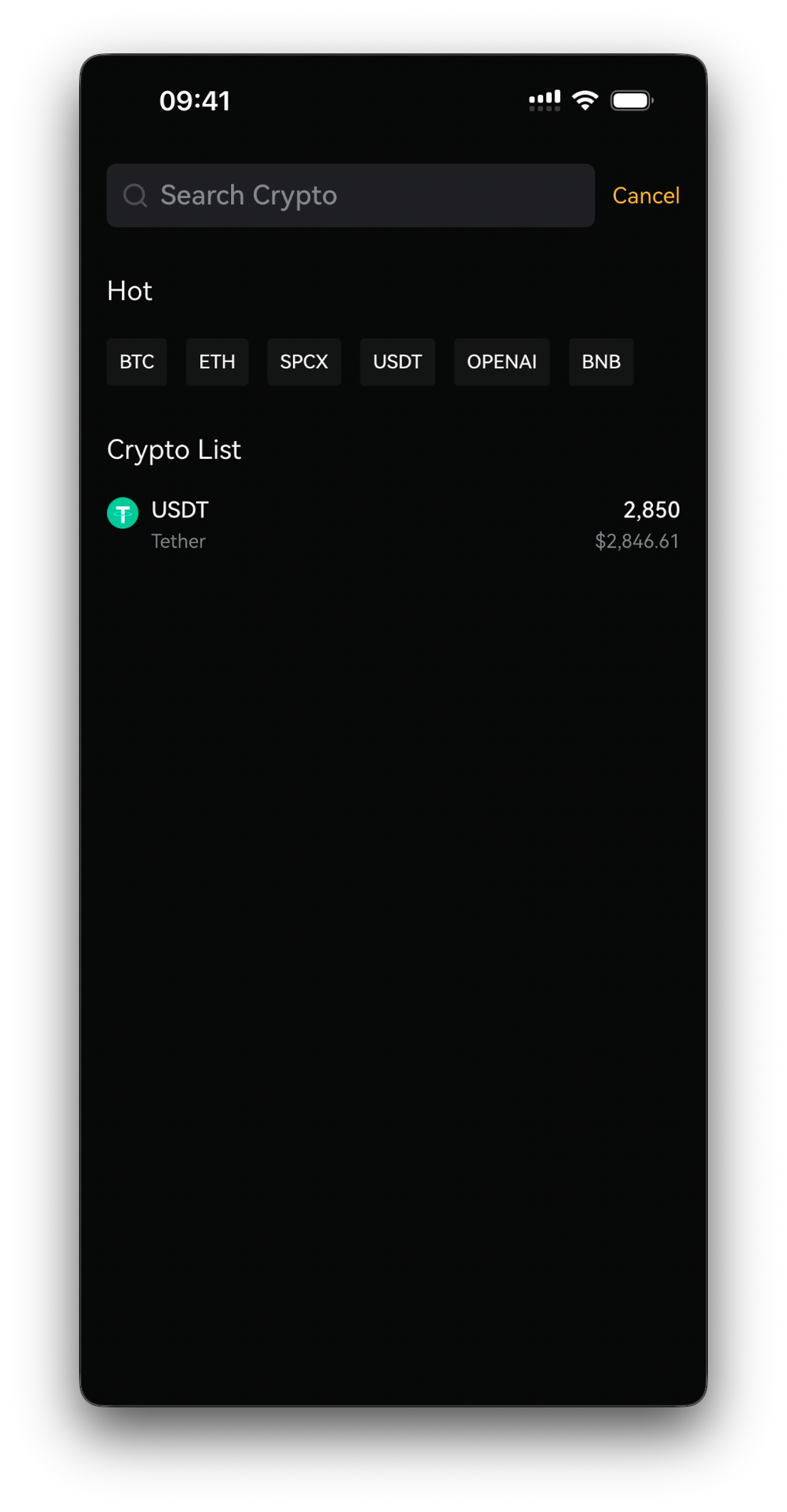
Step 7 · Open Withdraw and select the coin
Go to Withdraw (from the coin's page or your assets) to open the withdrawal screen — for example Withdraw USDT.
Step 8 · Enter the address and select the network
Paste the recipient's Address/Domain and choose the Network (e.g., TRC20 (TRON)) — it must match the receiving wallet's network. You can save it as a whitelisted address for Quick Withdrawal.
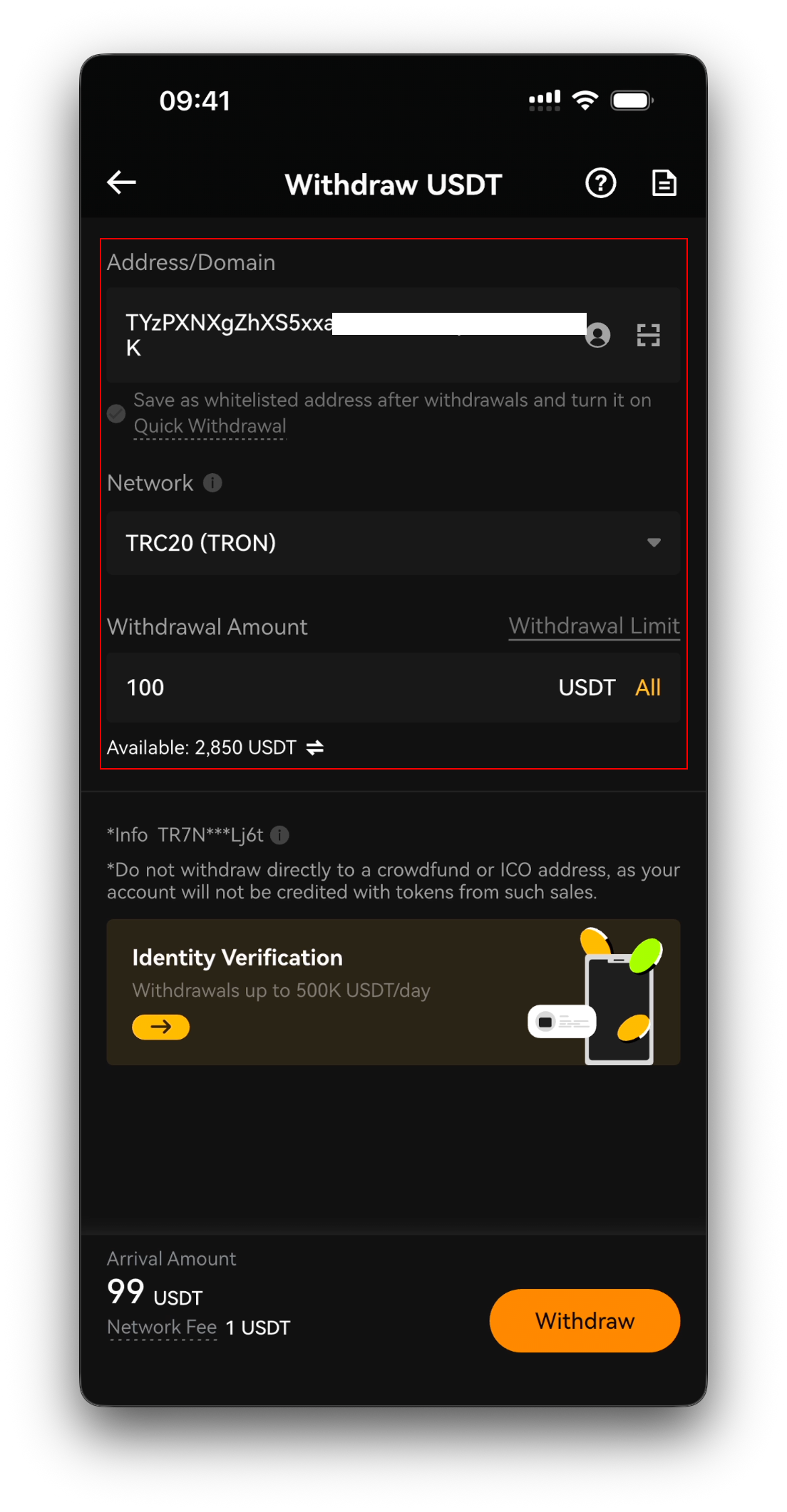
Step 9 · Enter the amount, verify, and confirm
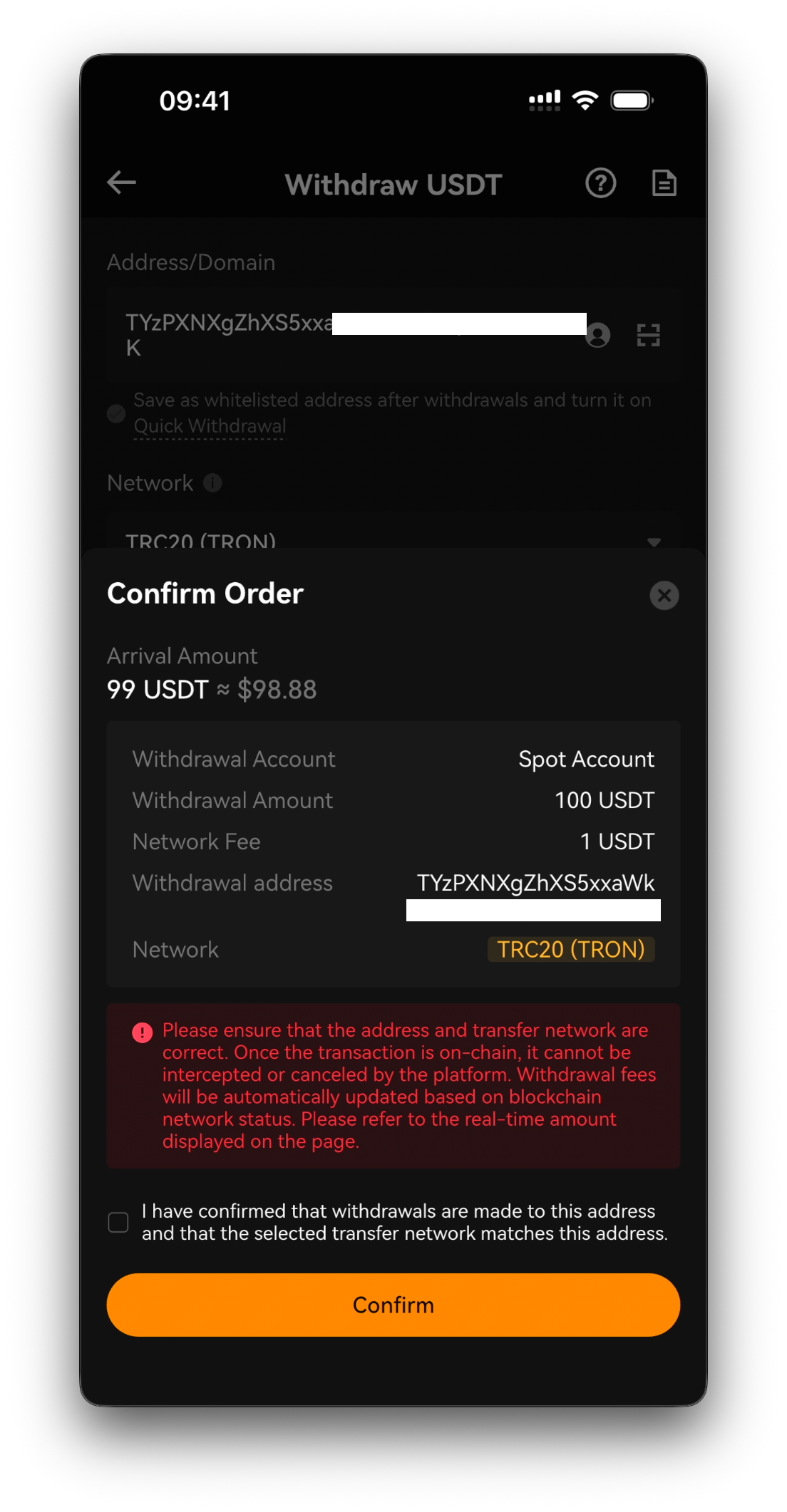
Enter the Withdrawal Amount (or tap All / Available). Review the Arrival Amount and Network Fee, complete identity/security verification if prompted, then tap Withdraw.
Safety reminders
Always match the network on both the deposit and withdrawal sides — this is the most common cause of lost funds. Verify the destination address character by character, and consider whitelisting trusted addresses. Never share your verification codes or passwords; Bitbase will never ask for them.
This is an official Bitbase product tutorial, provided for educational and informational purposes. Interface details, fees, and limits may change; always refer to the latest Bitbase app. Written as of June 2026.